

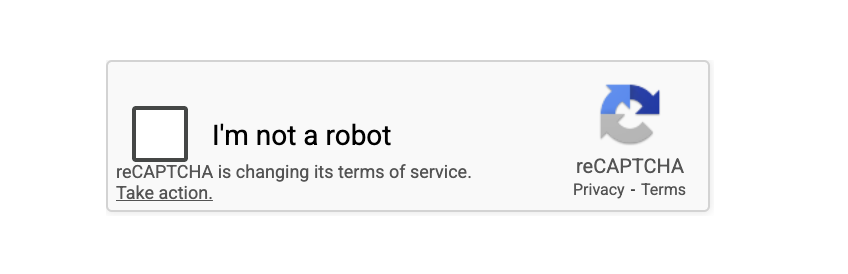
How to Implement CAPTCHA in a WordPress website
What is Captcha:
CAPTCHA is a type of security measure used on websites to ensure that a user is a real person and not a bot.
They often require users to perform tasks that are easy for humans but difficult for computers, such as recognizing distorted text, identifying objects in images, or solving simple puzzles.
This ensures that automated software cannot perform unauthorized actions on websites, such as spamming or creating fake accounts.
Types of CAPTCHA
Captchas are used to verify that a user is human. The common types include:
- Text Captcha: Type the letters or numbers you see.
- Image Captcha: Choose the pictures that match (like cars or lights).
- Audio Captcha: Listen and type what you hear.
- Math Captcha: Solve a small math question.
- Google reCAPTCHA: Click “I’m not a robot” or solve image tasks.
All Captchas stop bots and allow real users.
Benefits Of CAPTCHA:-
- Reduces spam on your website.
- Easy for humans to solve in a few seconds.
- Protects your site from bots and automated attacks.
- Keeps registrations safe, allowing only real users to sign up.
- Protects important forms from being misused.
Improves your website analytics by blocking fake bot traffic.
How to Set Up CAPTCHA on Your Website
Use the Google Captcha (reCAPTCHA) plugin to add CAPTCHA security to a WordPress website by following these steps:
- Log in to your wordpress dashboard:


1 Click on plugins and then click on add new.
2 In the search box, type google captcha.
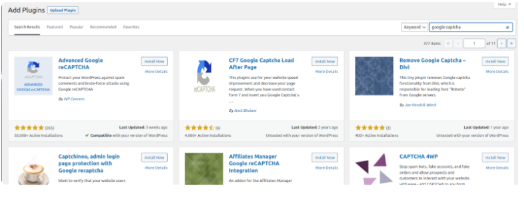
3 Click on the settings.
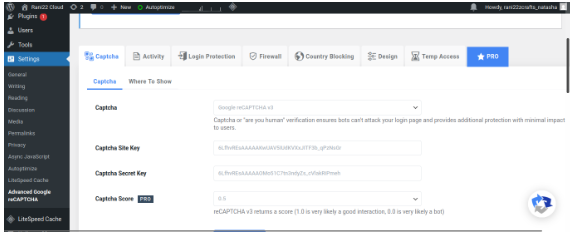
4.You must go to the reCAPTCHA website and select the ‘Admin Console’ button in order to get these API keys.
5. You must first put the name of your website in the Label field. The next step is to choose reCAPTCHA type. As an illustration, we’ll select the reCAPTCHA v2 “I’m not a robot” checkbox.
6.The domain name you wish to use must then be entered in the Domains section. Don’t forget to type your domain name without the “https://www” prefix.
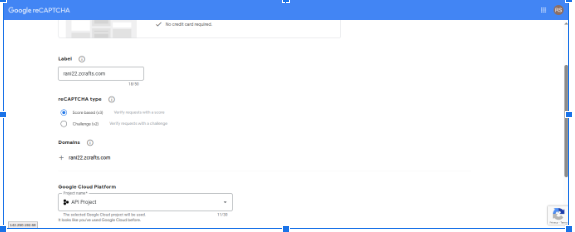
Next, you will see a success message along with the site and secret keys that you can use on your site.
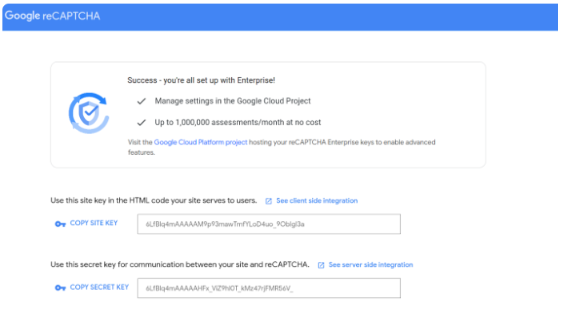
7. After you receive your keys from Google, type the public key into the Public Key text box, and type
the private key into the Private Key text box.
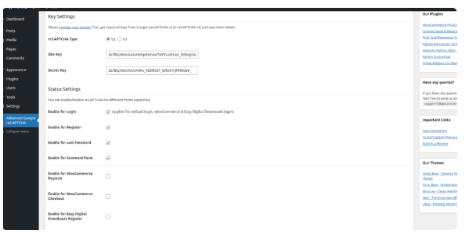
CAPTCHAs are now activated for your site. To test this, go to your WordPress site’s front page.
#Manual reCAPTCHA Setup in WordPress (Using Script)
Go to the reCAPTCHA website and click “Get reCAPTCHA.”
Register your website and Google will give you two keys: a Site Key and a Secret Key.
1. Add the Script in the <head> Section
Open your website’s main HTML or theme file (for WordPress this is usually header.php).
Look for the <head> tag and place this before the closing </head> tag:
<script src=”https://www.google.com/recaptcha/api.js”></script>
Example:
<head>
<!– other code –>
<script src=”https://www.google.com/recaptcha/api.js”></script>
</head>
2. Add the CAPTCHA Box Inside Your Form
Open the page or form file where visitors submit information (contact form, register form, comment form, etc.).
Place this code inside the form, right above the submit button:
<div class=”g-recaptcha” data-sitekey=”YOUR_SITE_KEY”></div>
Example:
<form action=”submit.php” method=”post”>
<!– form fields –>
<div class=”g-recaptcha” data-sitekey=”YOUR_SITE_KEY”></div>
<button type=”submit”>Submit</button>
</form>
Replace YOUR_SITE_KEY with your actual reCAPTCHA Site Key.